Your laptop battery doesn’t last as long as it used to? Does it drain quickly even when you’re doing basic tasks? Before spending money on a new battery, it’s worth checking its current health.
The good news is that windows has a built-in feature that generates a detailed battery report. MacBooks also have a dedicated battery health section that tells you how well your battery is performing.
In this guide, I’ll show you how to check battery health in laptop using simple, built-in tools. We’ll also look at how to understand the battery report, calculate battery health percentage, and identify when it’s time to replace your laptop battery.

Primebook 3 Max (2026) AI Laptop
8GB RAM, 128GB Storage
15.6-Inch FHD IPS Display
Up to 12H Battery
What Is Laptop Battery Health?
Laptop battery health tells you how much of its original charging capacity your battery can still hold.
Every rechargeable laptop battery gradually loses capacity as it ages and goes through charging cycles. This means a laptop that originally lasted 8 hours might only last 5 hours after a few years of use.
For example, imagine your laptop came with a battery capacity of 50,000 mWh. After two years, its maximum charging capacity has dropped to 40,000 mWh.
This means your battery has retained 80% of its original capacity, and its battery health is approximately 80%.
Battery health and battery percentage are not the same thing.
- Battery percentage tells you how much charge is currently available.
- Battery health tells you how much charging capacity the battery has lost over time.
Now, let’s see how to check it.
How to Check Battery Health in Laptop (Windows 11 & Windows 10)
Windows has a built-in battery reporting tool that generates a detailed HTML report. You can use this report to check your laptop’s original battery capacity, current maximum capacity, charging history, and battery usage.
Follow these steps.
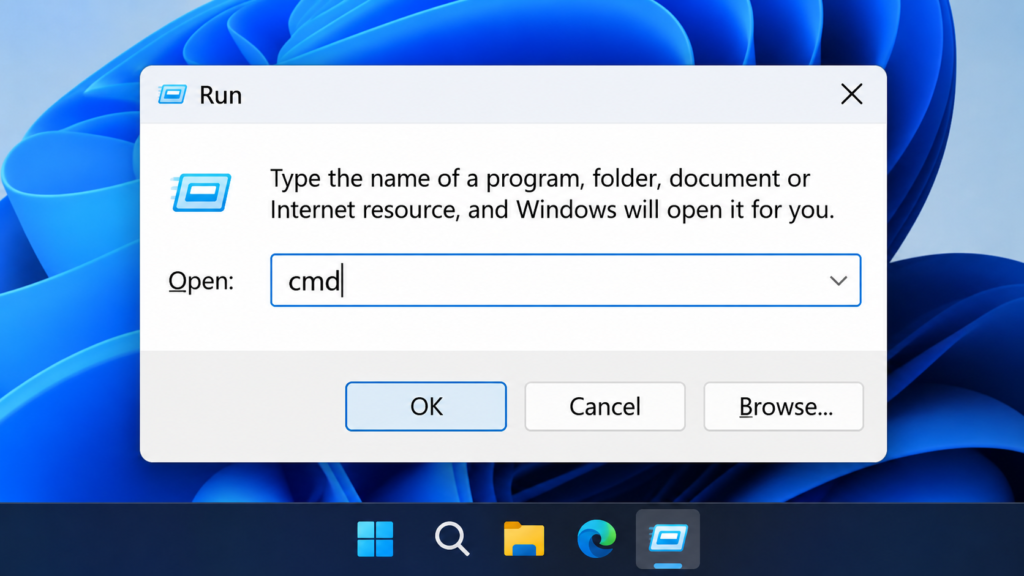
Step 1: Open Command Prompt
- Press the Windows + R keys on your keyboard.
- Type
cmdin the Run dialog box. - Press Enter to open Command Prompt.
Alternatively, you can search for Command Prompt directly from the Windows Start menu.
Step 2: Generate the Battery Report
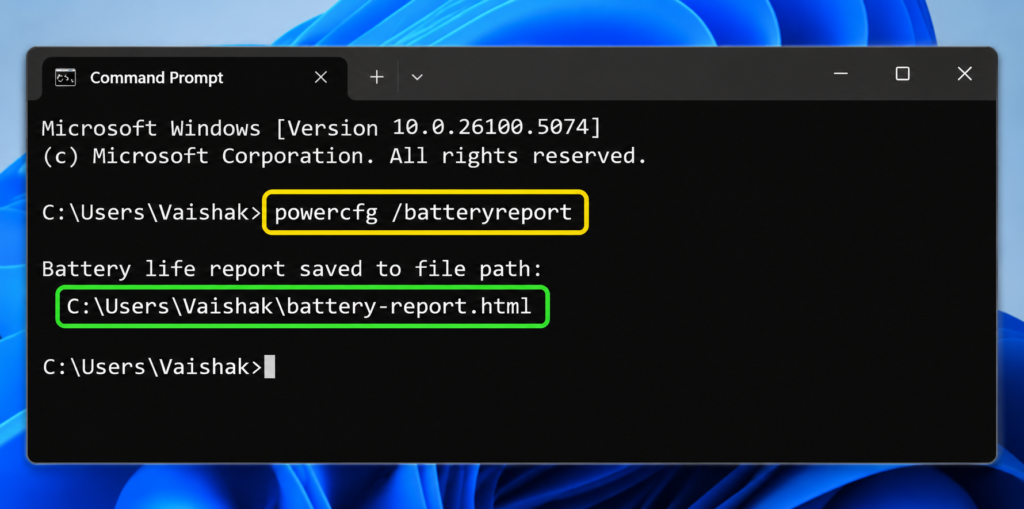
Once Command Prompt opens, type the following command:
powercfg /batteryreport
Press Enter.
Windows will generate a battery report and save it as an HTML file on your computer.
You’ll also see a message showing where the report has been saved.
Step 3: Open the Battery Report
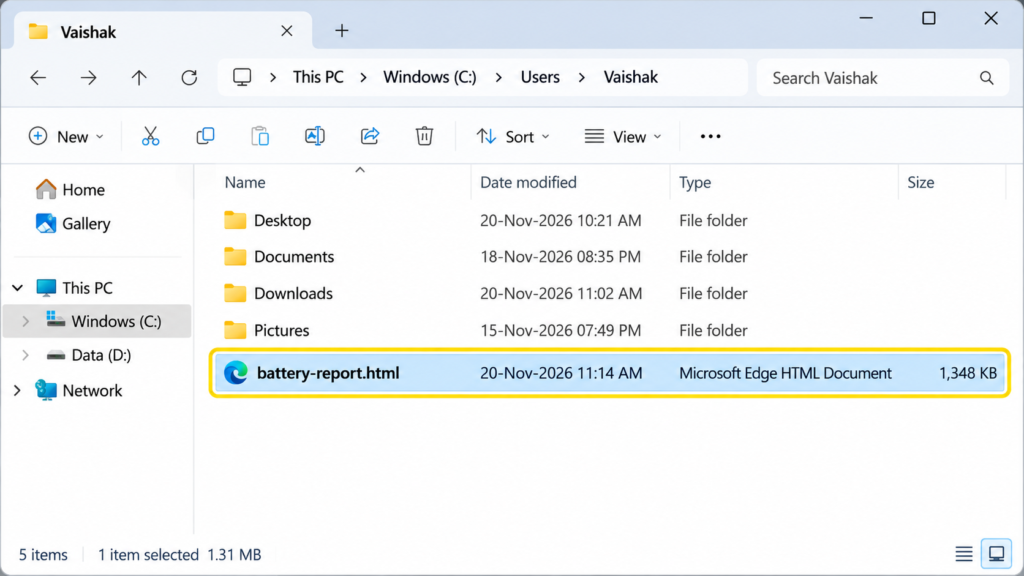
By default, Windows usually saves the report in your user folder.
The location will look something like this:
C:\Users\YourUsername\battery-report.html
To open the report:
- Open File Explorer.
- Navigate to the location shown in Command Prompt.
- Find the file named
battery-report.html. - Double-click the file to open it in your web browser.
You should now see a detailed report containing information about your laptop battery.
Step 4: Check the Battery Health
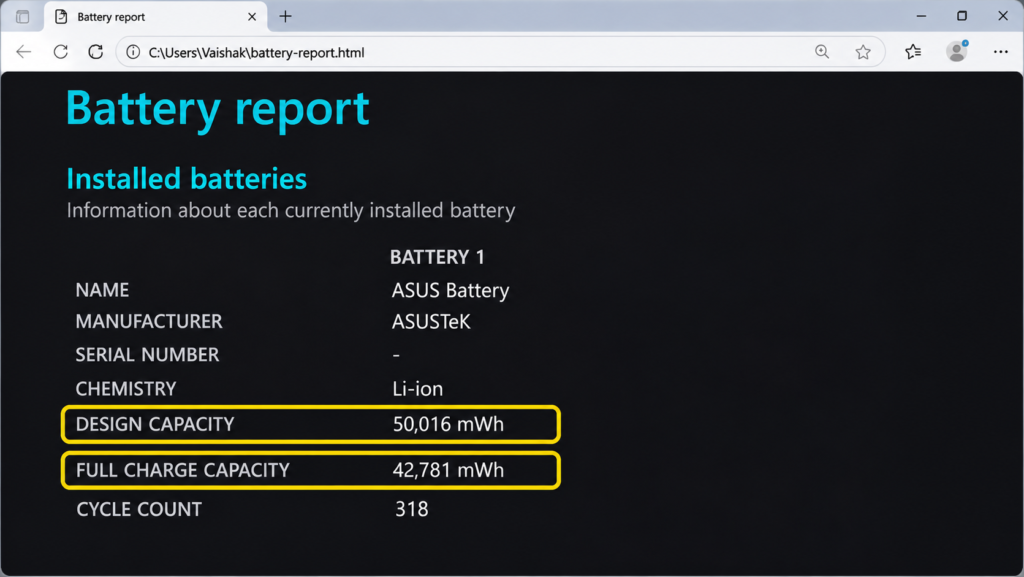
When the report opens, look for the Installed batteries section.
You’ll find two important values:
1. Design Capacity
This is the original capacity your laptop battery was designed to hold when it was new.
2. Full Charge Capacity
This is the maximum amount of charge your battery can currently hold, based on the system’s battery measurements.
Compare these two values to understand how much capacity your battery has lost.
For example:
| Battery information | Capacity |
|---|---|
| Design Capacity | 50,000 mWh |
| Full Charge Capacity | 40,000 mWh |
| Battery Health | 80% |
In this example, your laptop battery can now hold approximately 80% of its original capacity.
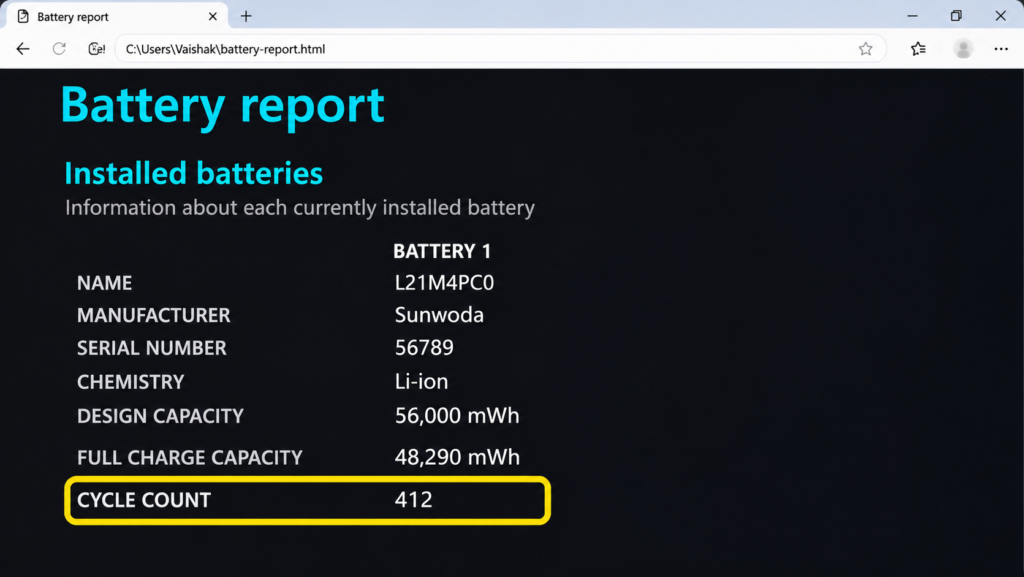
Step 5: Check the Battery Cycle Count
You can also check how many charge cycles your laptop battery has completed.
A charge cycle represents the equivalent of using 100% of the battery’s capacity. It doesn’t necessarily mean charging from 0% to 100% in one go.
For example, if you use 50% of your battery today and recharge it, then use another 50% tomorrow, that’s approximately one full charge cycle.
Look for the Cycle Count field in the Installed batteries section of your report.
Some laptops and batteries don’t provide this information, so the field might be missing.
How to Calculate Laptop Battery Health Percentage
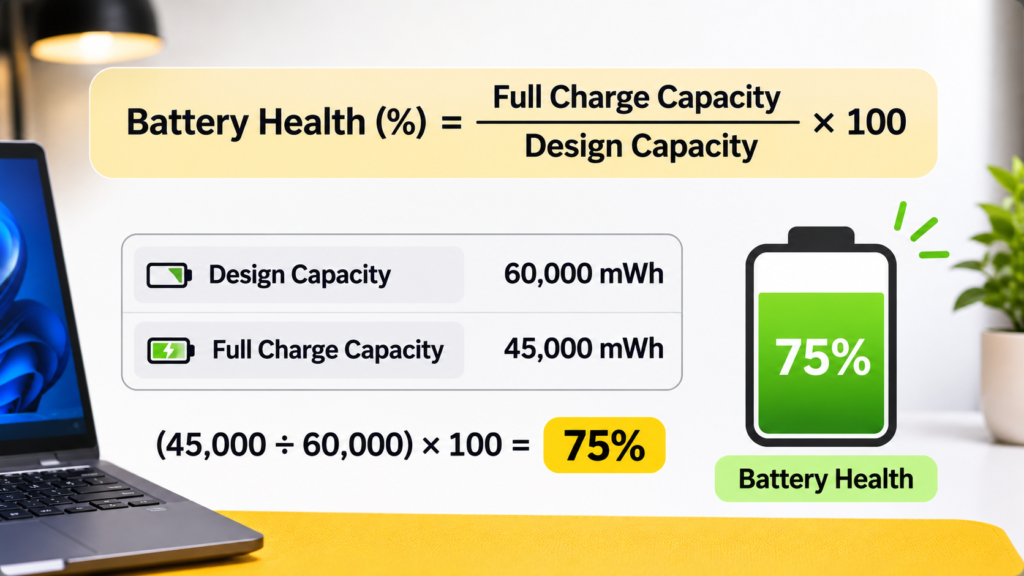
If you want to calculate your battery health manually, use this simple formula:
Battery Health (%) = (Full Charge Capacity ÷ Design Capacity) × 100
Let’s take another example.
Suppose your laptop has:
- Design Capacity: 60,000 mWh
- Full Charge Capacity: 45,000 mWh
Your battery health would be:
(45,000 ÷ 60,000) × 100 = 75%
This means your laptop battery currently holds approximately 75% of its original capacity.
You can use the same formula with the values from your Windows battery report.
What Is a Good Battery Health Percentage?
Your laptop battery health will gradually decrease with use. However, how much degradation is acceptable depends on your laptop, battery age, usage patterns, and actual runtime.
Here’s a practical guide to understanding the numbers:
| Battery Health | What It Means |
|---|---|
| 90–100% | Excellent condition, relatively close to original capacity |
| 80–89% | Normal battery wear |
| 70–79% | Noticeable capacity loss; monitor battery performance |
| Below 70% | Significant capacity loss; consider a replacement if runtime is affected |
These are general guidelines, not official universal replacement thresholds.
For example, a three-year-old laptop with 85% battery health may still provide perfectly usable battery life. On the other hand, a laptop with 90% health could still have an issue if it shuts down unexpectedly or drains unusually fast.
Don’t make your replacement decision based on the percentage alone. Consider actual battery performance as well.
How to Check Battery Health in a MacBook
If you’re using a MacBook, you don’t need to generate a battery report using Command Prompt.
macOS has a built-in feature that displays your battery condition and maximum capacity.
Follow these steps:
- Click the Apple menu in the top-left corner.
- Open System Settings.
- Select Battery from the sidebar.
- Look for Battery Health.
- Check the battery condition and maximum capacity, if available.
You’ll generally see one of these battery conditions:
- Normal: Your battery is functioning normally.
- Service Recommended: Your battery’s ability to hold charge has decreased, or the battery isn’t functioning as expected. You may need to consider servicing or replacing it.
Depending on your MacBook model and macOS version, you may also see the battery’s maximum capacity as a percentage.
How to Check MacBook Battery Cycle Count
You can also check how many charge cycles your MacBook battery has completed.
- Hold down the Option key.
- Click the Apple menu.
- Select System Information.
- Under Hardware, select Power.
- Look for Cycle Count under Battery Information.
The maximum cycle count varies by MacBook model. Check Apple’s specifications for your particular model to understand its expected battery cycle limit.
How to Check Battery Health on Different Laptop Brands
Apart from the built-in Windows battery report, some laptop manufacturers provide their own diagnostic tools.
These tools can help you check battery condition and identify potential hardware issues.
| Laptop Brand | Battery Diagnostic Tool |
|---|---|
| ASUS | MyASUS |
| Dell | Dell Power Manager / SupportAssist |
| HP | HP PC Hardware Diagnostics |
| Lenovo | Lenovo Vantage |
| Acer | Acer Care Center (where supported) |
The available features vary depending on your laptop model. If your manufacturer’s software doesn’t provide a battery health reading, use the Windows battery report instead.
When Should You Replace Your Laptop Battery?
A declining battery health percentage doesn’t automatically mean you need a replacement.
However, there are a few signs that indicate your battery might need attention:
1. Your laptop battery drains very quickly
If your laptop used to last 6–7 hours but now barely lasts 1–2 hours under similar workloads, battery degradation could be the reason.
2. Your laptop shuts down unexpectedly
If your laptop suddenly switches off even when the battery indicator shows 15–20% charge remaining, the battery may not be reporting or delivering power correctly.
3. Your laptop battery isn’t charging properly
If your battery gets stuck at a particular percentage or doesn’t charge consistently, there could be an issue with the battery, charging adapter, or charging circuit.
4. Your battery is swollen
This is a more serious problem. If you notice the laptop’s bottom panel bulging, the trackpad lifting, or the battery physically expanding, stop using the laptop and disconnect the charger if you can do so safely. Don’t press, puncture, or attempt to remove a swollen battery yourself. Contact an authorised service centre.
If your battery is significantly degraded and affecting your everyday usage, consider getting it tested and replaced by a qualified technician.

How to Improve Your Laptop Battery Lifespan
You cannot restore the original capacity of a chemically degraded battery through software. However, you can slow down further battery wear with a few simple habits.
1. Avoid excessive heat
Heat is one of the factors that accelerates battery ageing. Avoid using your laptop on beds, pillows, or other surfaces that block its ventilation.
2. Use battery charge limits if available
Some laptops offer battery conservation or charge-limit features that stop charging at around 80%. If you mostly use your laptop while plugged in, enabling this feature can help reduce battery wear.
3. Avoid frequent deep discharges
You don’t need to drain your laptop battery to 0% before charging it. Lithium-ion batteries generally benefit from avoiding repeated deep discharges.
4. Use the correct charger
Always use a compatible charger that meets your laptop manufacturer’s power requirements.
5. Keep your laptop updated
Install recommended BIOS, firmware, and operating system updates. Some updates can improve battery management and fix power-related issues.
Frequently Asked Questions
1. How do I check battery health in laptop without installing software?
You can use Windows’ built-in battery report feature. Open Command Prompt, type powercfg /batteryreport, and press Enter. Open the generated HTML file to check your battery’s design capacity and full charge capacity.
2. How do I check laptop battery health in Windows 11?
Press Windows + R, type cmd, and press Enter. Then run powercfg /batteryreport. Windows will generate an HTML report containing your battery information.
3. How do I check battery health in laptop Windows 10?
The process is the same in Windows 10. Open Command Prompt, run powercfg /batteryreport, and open the generated battery report.
4. Is 80% battery health good for a laptop?
Yes, 80% battery health generally indicates that your battery has retained 80% of its original charging capacity. It has experienced some wear, but it may still be perfectly usable depending on your battery runtime and usage.
5. How many years does a laptop battery last?
A laptop battery commonly lasts around 2–5 years, depending on its quality, usage, temperature, and charging habits. Actual lifespan varies between laptop models and users.
6. Does charging a laptop overnight damage the battery?
Modern laptops have charging management systems that help prevent conventional overcharging. However, keeping a battery at a high charge level for extended periods, especially in hot conditions, can contribute to battery ageing. Use a charge-limit feature if your laptop provides one.
7. Can I improve my laptop battery health?
You cannot reverse chemical battery degradation or restore lost capacity through software. However, you can slow down further degradation by avoiding excessive heat, using charge limits where available, and avoiding frequent deep discharges.
Final Thoughts
Checking your laptop battery health doesn’t require any complicated software or technical knowledge.
If you’re using Windows 10 or Windows 11, the built-in powercfg /batteryreport command is one of the easiest ways to check your battery’s condition. MacBook users can find the same information under System Settings > Battery.
Pay attention to your battery’s full charge capacity, cycle count, and actual runtime. These details will help you understand whether your battery is still performing well or if it’s time to consider a replacement.
That’s the guide on how to check battery health in laptop.
If you’ve found this guide to be helpful, feel free to checkout my other product review guides below.