Does your laptop screen turn off automatically when you leave it idle for a few minutes?
This can be annoying, while you’re reading something, downloading files, or just came back after a quick washroom break.
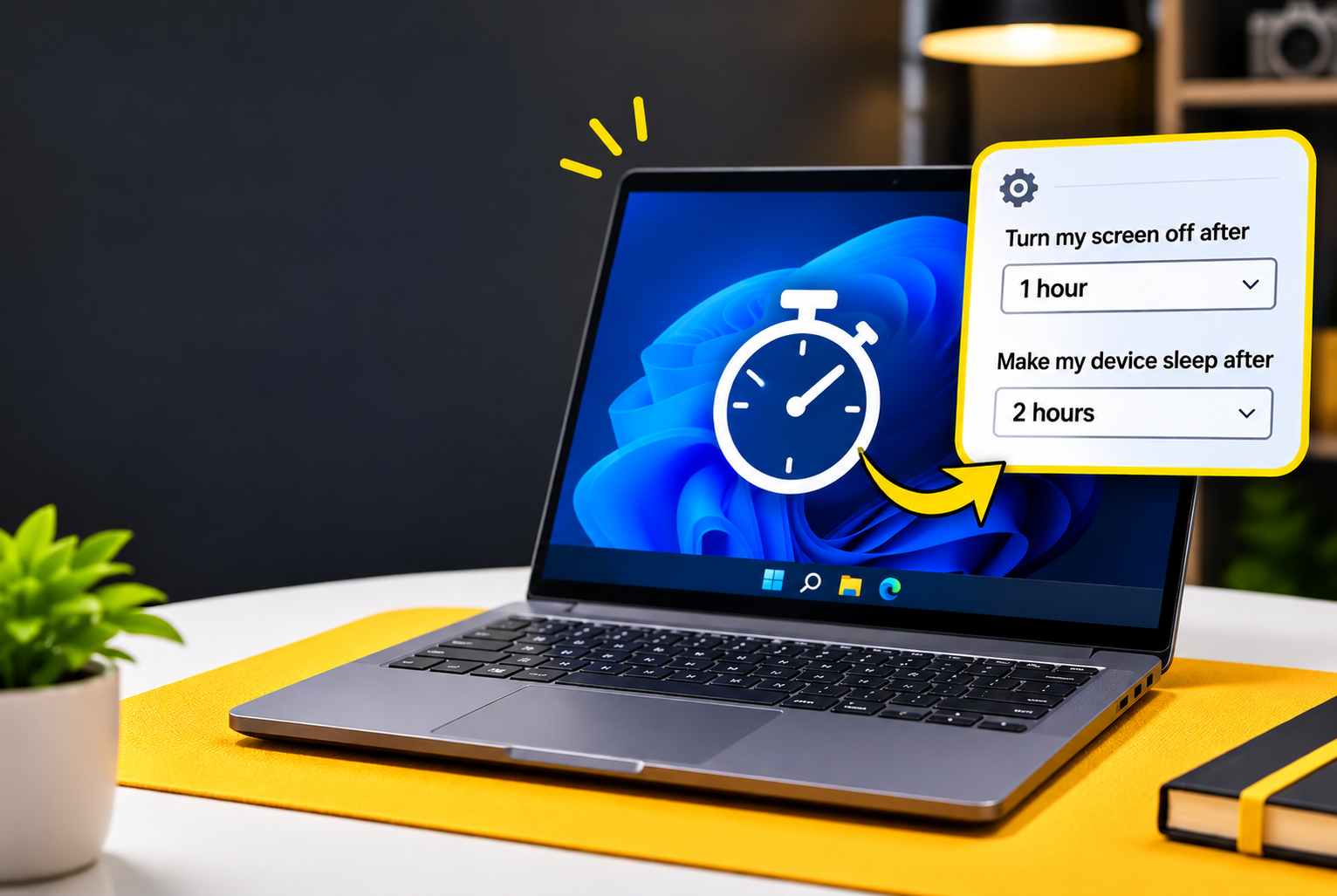
The good news is that its easy to fix this. You can increase your laptop’s screen time by changing the screen timeout and sleep settings.
In this guide, I’ll show you how to increase screen time in laptop that uses Windows 11. I’ll also explain how to keep your laptop awake for longer and change these settings on Windows 10 and Mac.
Related article: Best Windows Laptop Under 50,000
How to Increase Screen Time in Laptop (Windows 11)
Follow these steps to increase how long your Windows 11 laptop screen stays on.
Step 1: Open Windows Settings
- Press
Windows + Ion your keyboard to open the Settings app.
- Alternatively, click the Start button and search for Settings.
Step 2: Open Power & battery settings
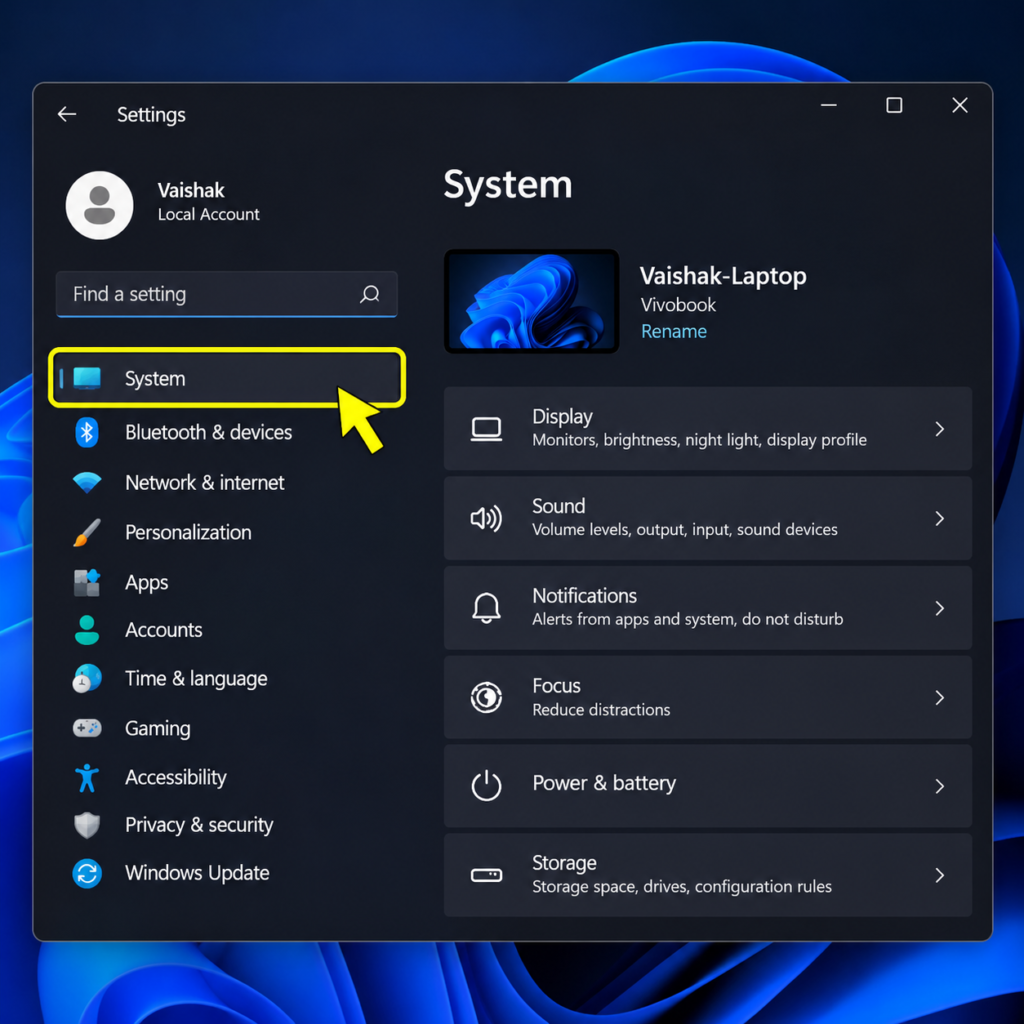
From the Settings window:
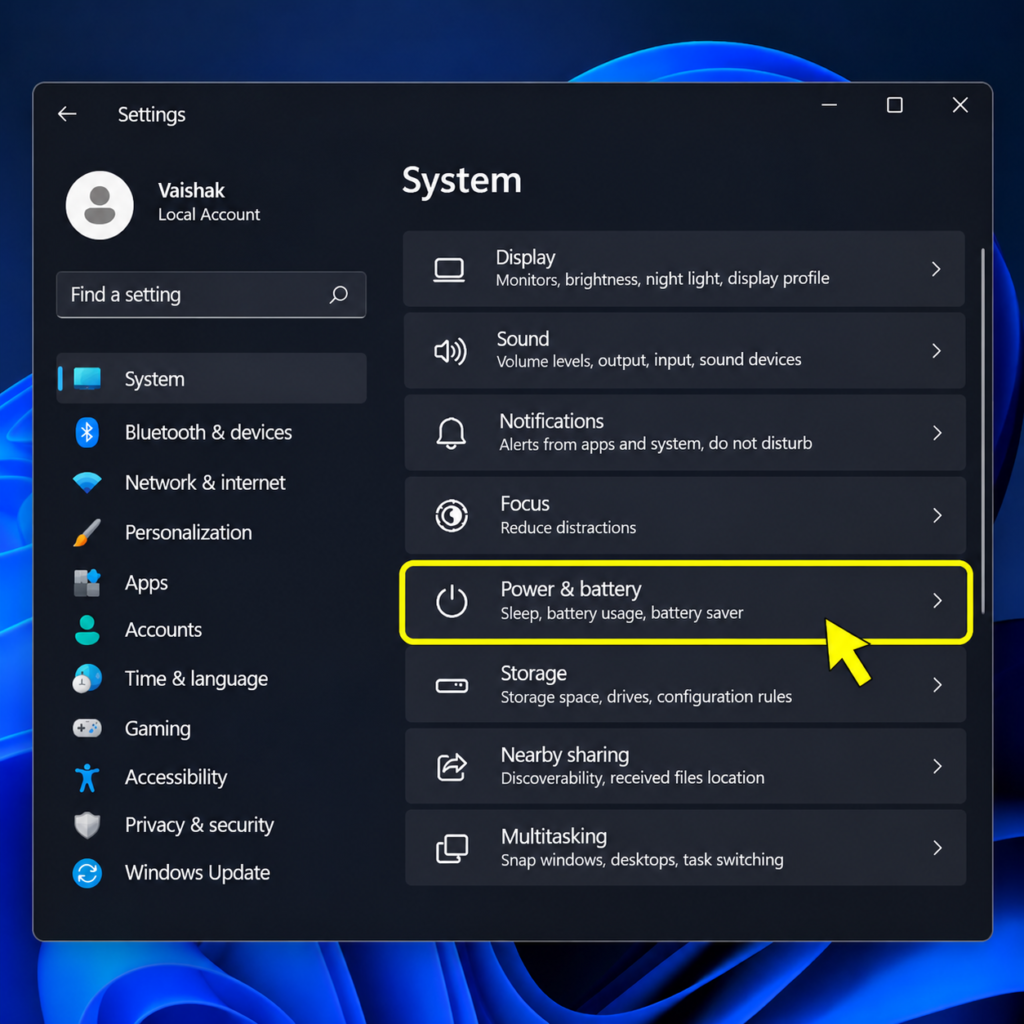
- Select System from the left sidebar.
- Scroll down and click Power & battery.
Step 3: Open Screen and sleep settings
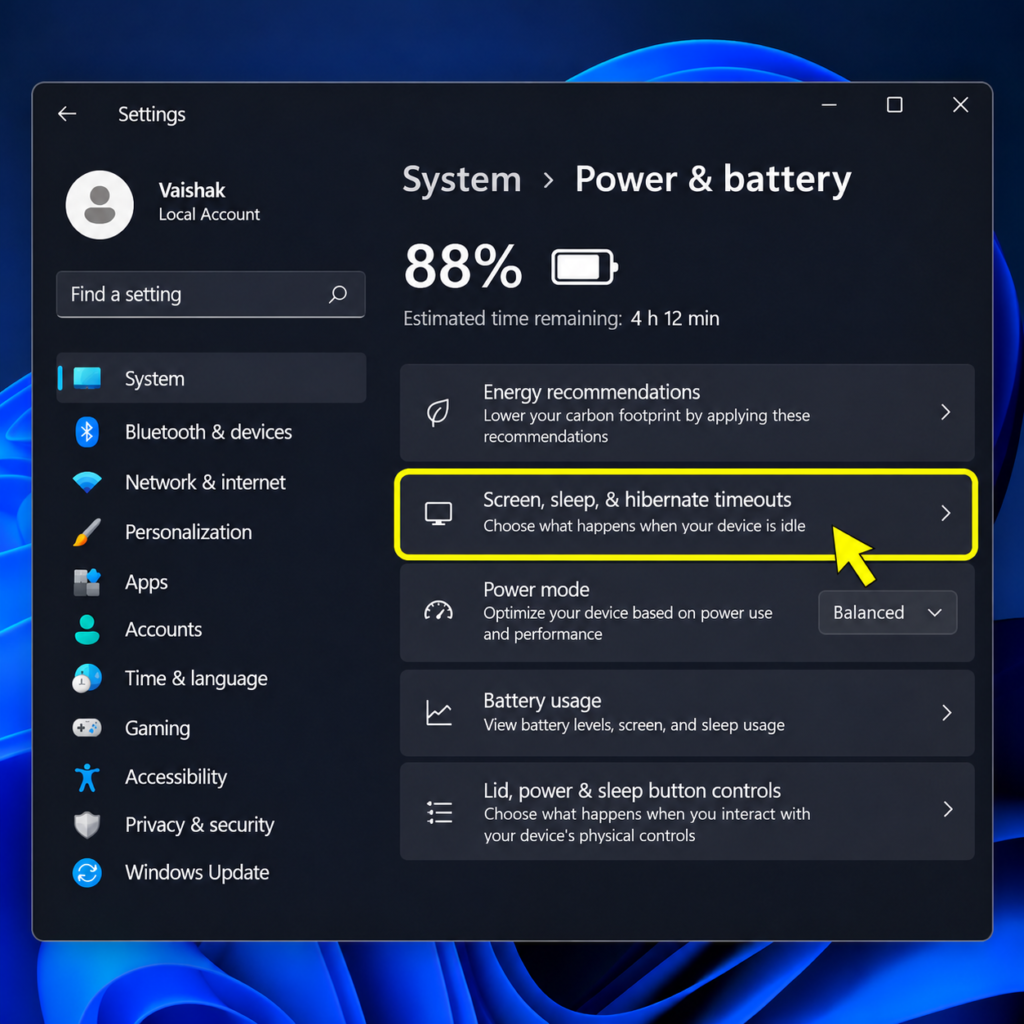
- Under Power & battery, find and expand Screen, sleep, & hibernate timeouts.
- Depending on your Windows 11 version, this section may simply be called Screen and sleep.
Step 4: Increase your screen timeout
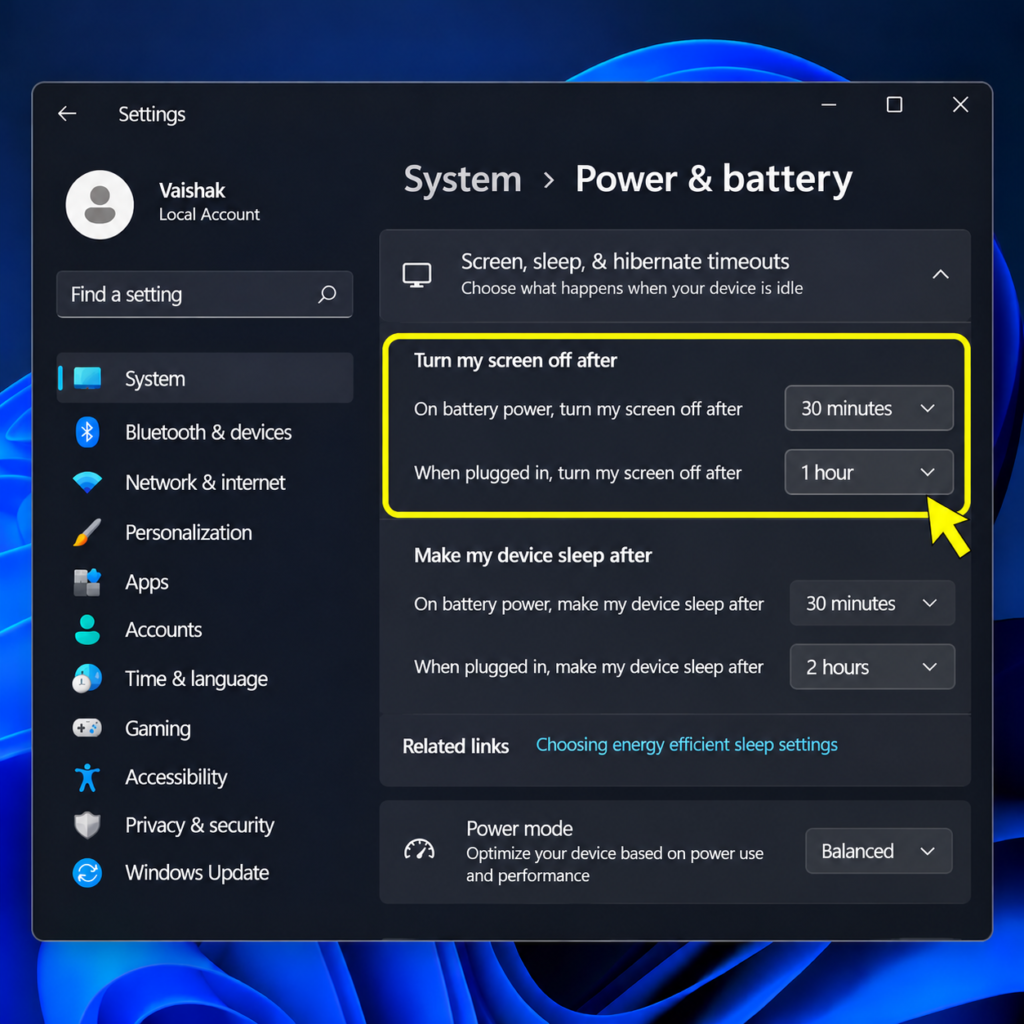
You’ll now see separate options for screen timeout and sleep timeout.
Under the screen settings, look for:
- On battery power, turn my screen off after: Controls how long your screen stays on when your laptop runs on battery.
- When plugged in, turn my screen off after: Controls how long your screen stays on when your laptop is connected to a charger.
Click the dropdown next to each option and select your preferred duration.
For example, you can select 30 minutes or Never if that option is available.
If you want your laptop screen to stay on longer regardless of whether it’s charging, remember to change both settings.
That’s it! Windows will apply your new settings automatically. You don’t need to restart your laptop.
How to Prevent Your Laptop From Going to Sleep
Changing the screen timeout alone may not be enough if your laptop goes to sleep automatically.
Windows has a separate setting that controls when your entire laptop enters sleep mode.
To change it:
- Open Settings.
- Go to System > Power & battery.
- Expand Screen, sleep, & hibernate timeouts.
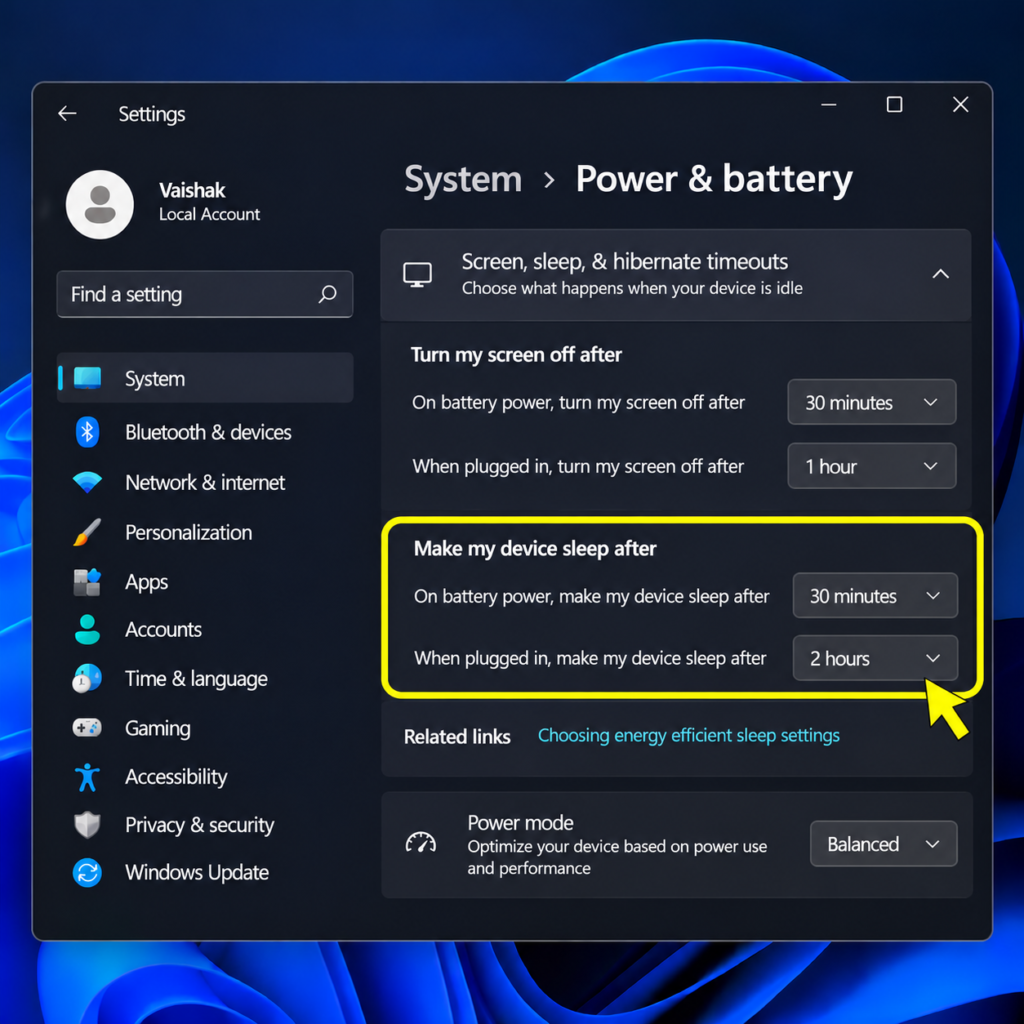
- Find Make my device sleep after.
- Increase the duration for both battery and plugged-in usage.
If you want your laptop to remain awake for longer, choose a longer duration or Never, if available.
Important: Screen timeout and sleep timeout are different. Screen timeout only turns off the display. Sleep mode puts your laptop into a low-power state. If you want your screen to remain visible, increase the screen timeout. If you want your laptop to keep running after the screen turns off, adjust the sleep timeout as well.
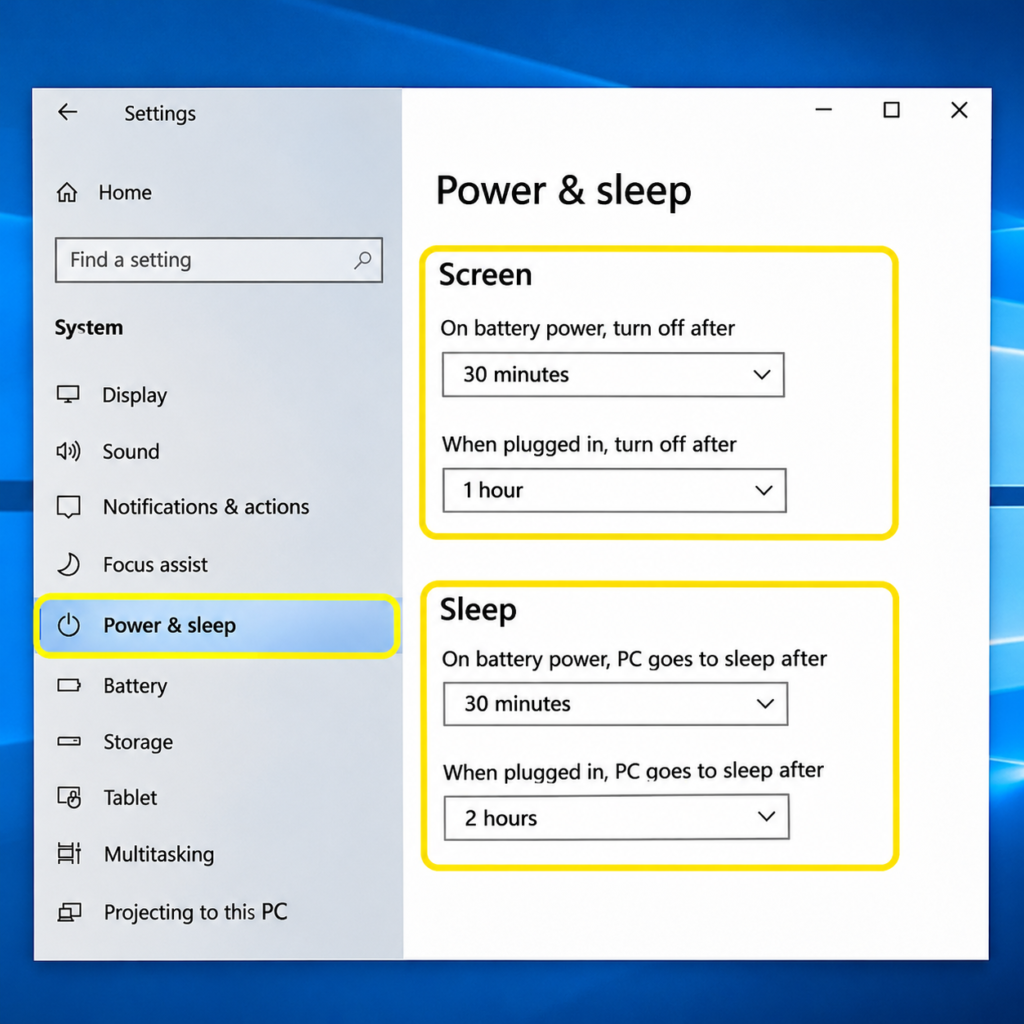
How to Increase Screen Time in Laptop – Windows 10
If you’re using Windows 10, the steps are slightly different.
- Press
Windows + Ito open Settings. - Select System.
- Click Power & sleep.
- Under the Screen section, find When plugged in, turn off after.
- Choose a longer duration.
- Repeat the process under the Sleep section if you also want to prevent your laptop from going to sleep.
You can set different durations depending on whether your laptop is running on battery or connected to a charger.
How to Increase Screen Time in Laptop – MacOS
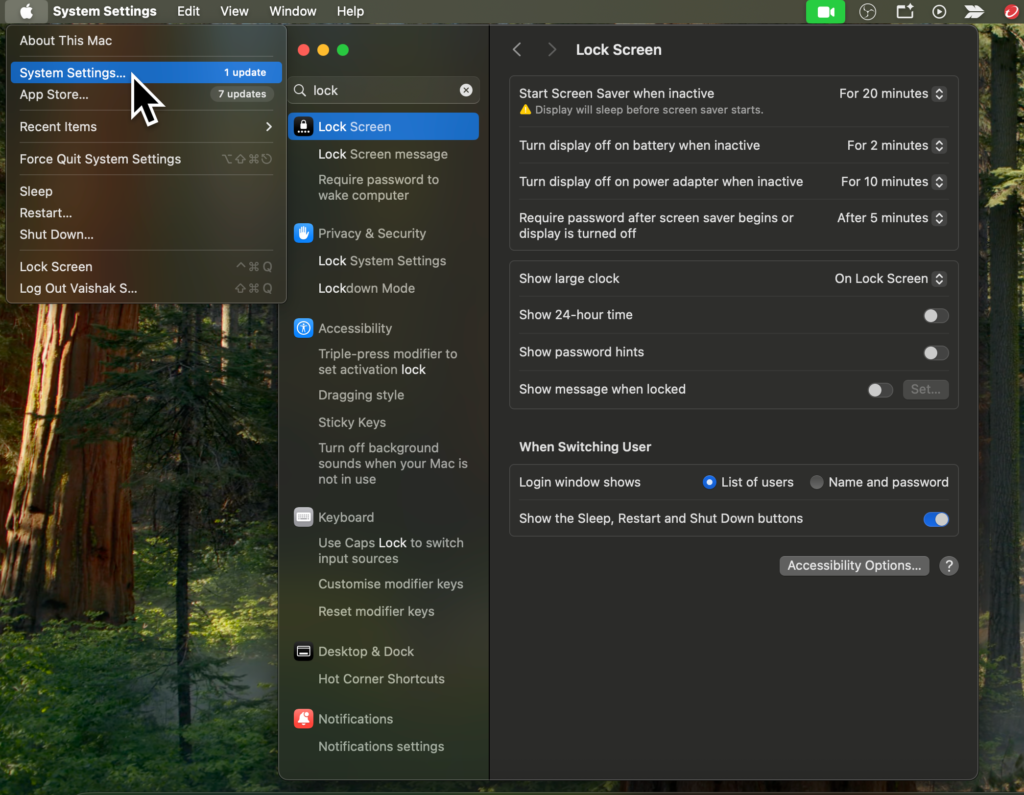
If you’re using a MacBook, you can also change how long the display stays on.
- Click the Apple menu in the top-left corner.
- Open System Settings.
- Select Lock Screen from the sidebar.
- Find Turn display off on battery when inactive.
- Choose a longer duration.
- Repeat for Turn display off on power adapter when inactive, if available.
The available options may differ depending on your macOS version and Mac model.
Frequently Asked Questions
1. How do I get my laptop screen to stay on longer?
Open Settings > System > Power & battery > Screen and sleep. Increase the duration next to the screen timeout options for both battery and plugged-in usage. You can select Never if Windows offers that option.
2. Can I use my laptop for 12 hours continuously?
Yes. A laptop can run for 12 hours continuously, provided it has adequate power and operates within its normal temperature limits. However, using a laptop continuously will consume more power and may generate heat depending on the workload.
Make sure your laptop has proper ventilation and take regular breaks from looking at the screen.
3. Is 7 hours of screen time healthy?
Seven hours of screen time isn’t automatically harmful, but spending long periods looking at a screen without breaks can cause eye strain and discomfort.
Follow the 20-20-20 rule: Every 20 minutes, look at something around 20 feet away for at least 20 seconds. Also, adjust your screen brightness and maintain a comfortable viewing distance.
4. How do I keep my laptop active while away?
To keep your laptop running while you’re away, increase the sleep timeout under Settings > System > Power & battery > Screen and sleep.
You can also increase the screen timeout if you want the display to remain on.
If you’re using your laptop in a shared workspace, remember to lock it before leaving. Keeping the screen on doesn’t mean you should leave your computer unlocked.
Final Thoughts
That’s the guide on how to increase screen time in laptop.
If you’ve found this guide to be helpful, feel free to checkout my other product review guides below.